Updated November 2026
Account takeovers rarely announce themselves. Nobody gets a pop-up saying “someone else is now using your email.” Instead, there’s usually a small trail of clues, and most people miss them or explain them away until the damage is already done.
Quick answer: The most common signs that someone else is using your account are login alerts from devices you don’t recognize, a password that suddenly stops working, two-factor codes you didn’t request, activity you didn’t do, and friends reporting strange messages from you. If you see any of these, change your password and turn on multi-factor authentication right away.
Here are the six signs to watch for, and what each one means.
Login and access alerts you didn’t trigger
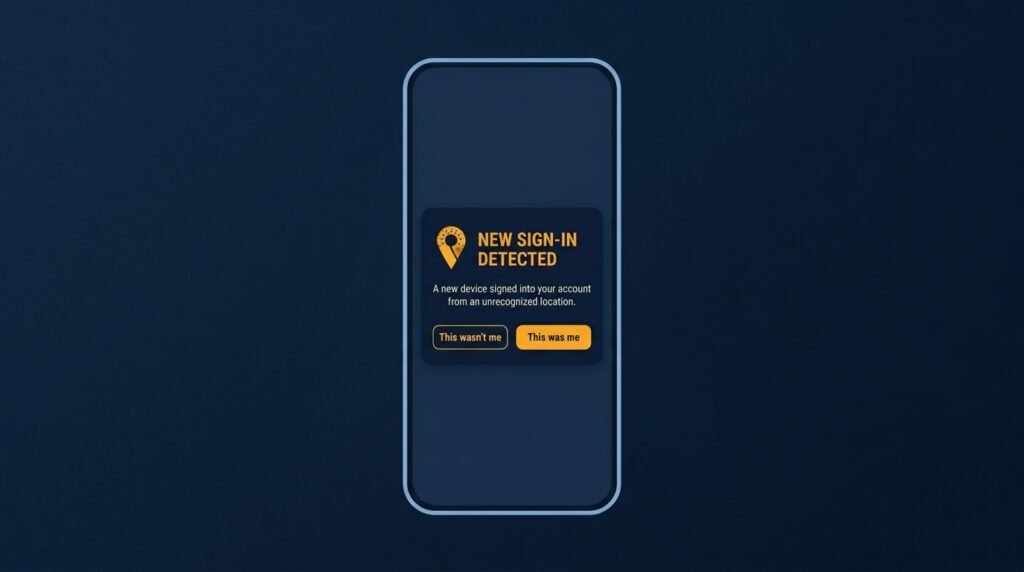
Most major services (email providers, banks, social platforms) send a notification when your account is accessed from a new device, browser, or location. A single alert from a new phone you just bought isn’t unusual. An alert naming a device, browser, or location you don’t recognize at all is one of the clearest signs something is wrong.
What to check: Most platforms have a security or “devices” page (Google’s “Your Devices,” Microsoft’s “My Account,” Apple ID’s device list) showing every session currently signed in. An unfamiliar device on that list, especially in a country you’ve never visited, is not a glitch. It’s a live signal that someone else has access. The step-by-step list further down shows where to look.
A password that suddenly stops working
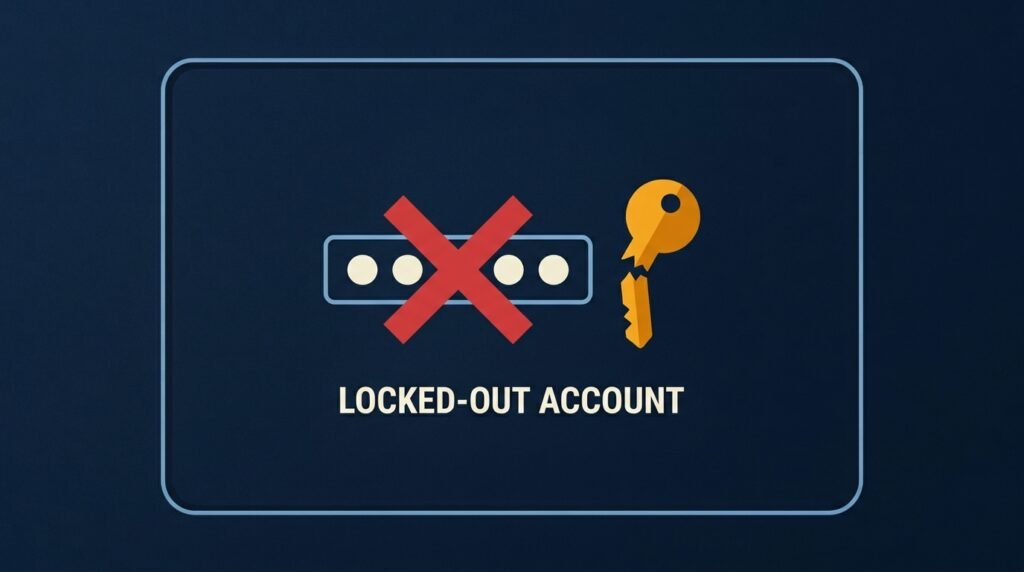
If a password that worked yesterday is suddenly rejected, and the “forgot password” recovery process doesn’t get you back in either, that’s a strong sign someone else has already changed your credentials. This is one of the clearest markers of a completed account takeover, not just an attempt. It means someone got in and then locked you out on purpose, usually to buy themselves more time before you notice.
What to do: Use the account recovery process immediately. If the recovery email or phone number has also been changed, most platforms have a separate “account compromised” recovery path specifically for this situation. Look for it rather than repeatedly trying the standard reset.
Unrequested two-factor codes or approval prompts
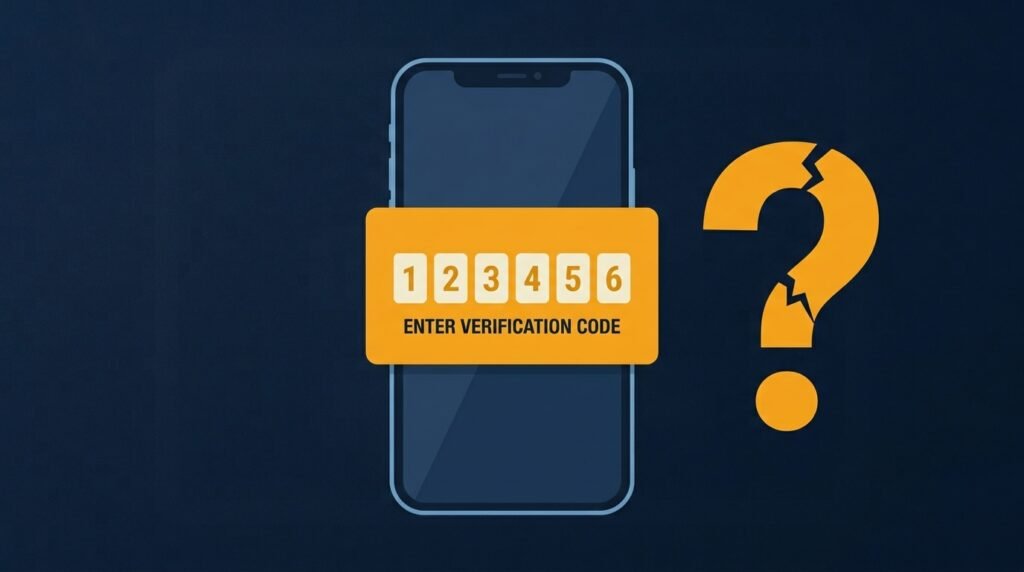
If a two-factor authentication code or a “was this you?” login approval shows up on your phone and you weren’t trying to log in, someone already has your password and is trying to get past the second layer of protection. Some attackers repeatedly send these approval requests hoping you’ll tap “approve” out of habit or annoyance, a tactic sometimes called push-bombing.
What to do: Deny or ignore the request, then immediately change the password for that account from a device you trust. Never approve a login prompt you didn’t initiate, no matter how many times it repeats. Passkeys are a safer alternative to passwords; see Passkeys Explained. New to two-factor authentication? Start with What Is Two-Factor Authentication?
Activity you didn’t do
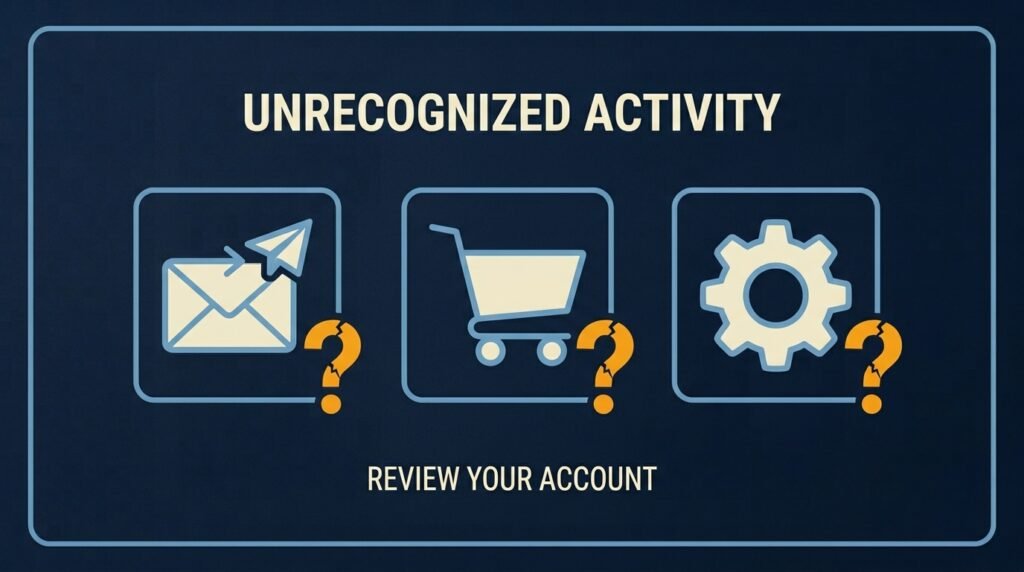
This is often the most reliable evidence of all, because it’s not a warning. It’s proof. Things to look for:
- Sent messages you didn’t write, especially ones asking contacts to click a link or send money.
- Unfamiliar transactions in banking, shopping, or payment apps.
- Emails or messages missing from your inbox, or moved into folders you didn’t create. Some attackers hide their tracks by archiving or deleting security alerts.
- New filters, forwarding rules, or auto-replies in your email that you didn’t set up, often used to quietly redirect or copy your incoming mail.
- Security settings changed without your input: two-factor authentication turned off, a new recovery email added, or account permissions altered.
- Installed apps, browser extensions, or connected third-party apps you don’t remember adding.
What to do: Review your sent folder, recent transactions, active sessions, and connected apps directly through each platform’s dashboard, not through a link in an email, in case that email itself isn’t legitimate. If the account is your email, our guide to the 10 signs your email has been hacked goes deeper.
Friends or contacts reporting strange messages “from you”
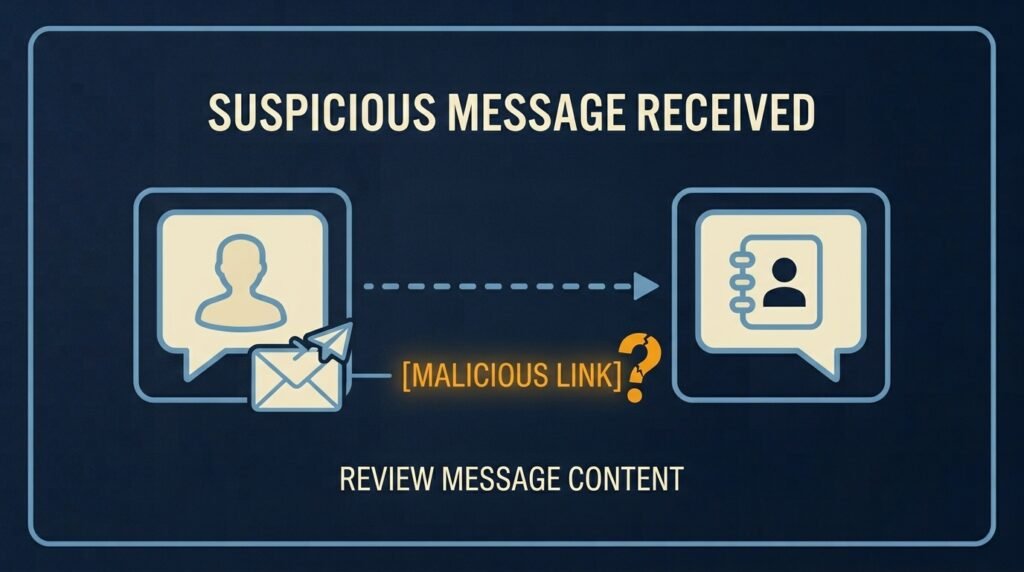
If someone tells you they received a strange message, unexpected link, or an odd request for money from your account, take it seriously even if you can’t see anything wrong yourself. A hacked email or messaging account is frequently used to send phishing attempts to your own contacts, since people are far more likely to trust, and click, something that appears to come from someone they know. If you want to see what these messages look like, here are real phishing email examples. Scams also arrive by text, so see how to spot a phishing text message.
What to do: Check your sent messages and login activity right away. If you find activity you didn’t do, change your password and warn your contacts not to click anything sent from your account recently.
Unexplained device or performance issues
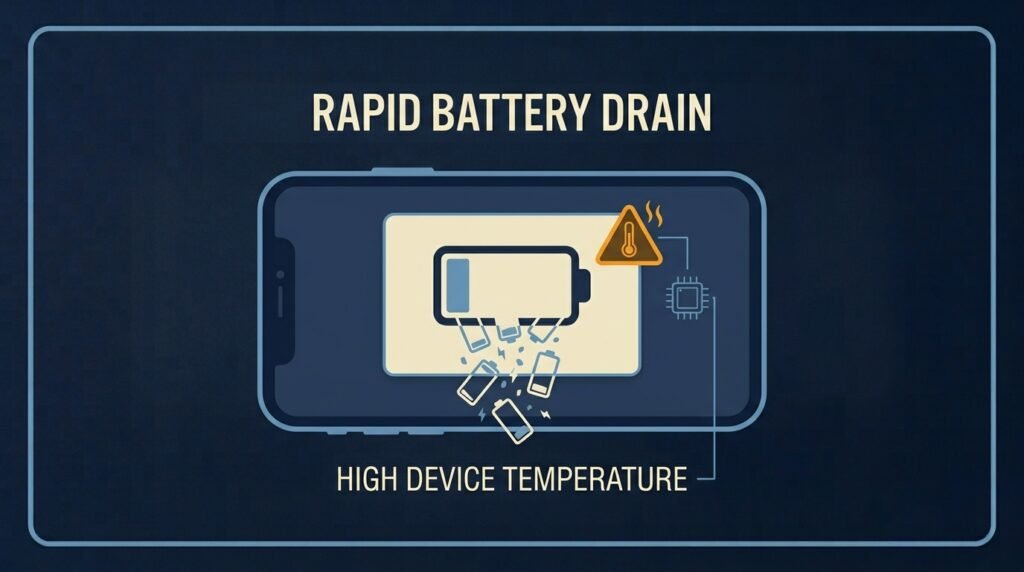
On their own, a slow computer or a phone battery that drains faster than usual doesn’t prove a hack, because there are plenty of ordinary explanations. But combined with other signs on this list, unusual device behavior is worth paying attention to: unexpected pop-ups, unfamiliar apps that appeared on their own, higher-than-normal data or phone bills, or a device that seems to be working even when you’re not using it.
What to do: Treat performance issues as a secondary signal, not primary proof. Look for concrete evidence (unfamiliar logins, changed settings, activity you didn’t perform) before assuming a device itself is compromised.
How to check who is logged into your accounts
Most platforms show every device that is currently signed in. Check these first:
- Google: open your Google Account, go to Security, then “Your devices,” and sign out of any you don’t recognize.
- Microsoft: sign in to your Microsoft account, open Security, and review your recent sign-in activity.
- Apple: on your iPhone, open Settings, tap your name, and scroll to see every device signed in with your Apple ID.
- Facebook and Instagram: open Settings, then Accounts Center, then Password and security, then “Where you’re logged in.”
Menu names change from time to time. If you can’t find the option, search your account settings for “devices” or “login activity.”
What to do the moment you spot a real sign
- Change the password immediately, from a device you trust, and make it unique to that account. A free password generator, like the one in our free security tools, can create a strong one. For help building one, see our strong password creation guide, and consider a password manager so you don’t have to remember it.
- Enable multi-factor authentication if it isn’t already on. This is consistently the single control that prevents stolen credentials from turning into a full takeover. Save your backup codes somewhere safe: how to store backup codes safely.
- Review and end unfamiliar active sessions through the platform’s security or devices page.
- Check and remove unfamiliar recovery emails, phone numbers, forwarding rules, or connected apps.
- Warn contacts if the compromised account could have been used to message or email them.
Why this matters for your business
A compromised employee account rarely stays contained to that one person. A hacked email is commonly used to send convincing phishing messages to coworkers or clients (the same trick behind many business email compromise scams), and stolen credentials are frequently reused to try logging into other business systems, since so many people reuse passwords across accounts. Verizon’s 2026 Data Breach Investigations Report found that credential abuse started 13% of breaches, down from 22% the year before, as exploited software vulnerabilities (31%) overtook it as the most common way in, according to Infosecurity Magazine’s summary. Credentials matter less as a first step than they used to, but the same report found a human element in 62% of breaches, which is why a single unnoticed account takeover can still quietly become a much bigger incident. When someone leaves your team, close their access properly with this employee offboarding checklist.
The bottom line
Account takeovers leave a trail: a login alert, a password that stopped working, an unrequested code, activity that isn’t yours. None of these signs are dramatic on their own, which is exactly why they’re easy to dismiss. Trusting that instinct and checking your account’s activity directly, rather than assuming it’s nothing, is usually what separates a quickly contained incident from a much bigger one.
Strong, unique passwords and multi-factor authentication remain the two controls that prevent most of this in the first place. Both are covered in the Small Business Cybersecurity Risk Checklist, if you haven’t already locked those down across your team.
Frequently asked questions
How can I tell if someone is logged into my account?
Open the account’s security or devices page, for example Google’s “Your devices” or the Apple ID device list, and look for devices, browsers, or locations you don’t recognize. Sign out of anything unfamiliar, then change your password.
Can someone use my account without me knowing?
Yes. Attackers often hide their activity by deleting security alerts or setting up hidden email forwarding rules, so a lack of obvious problems doesn’t prove an account is safe. Check sessions, forwarding rules, and connected apps regularly.
What should I do first if I think my account was hacked?
Change the password from a device you trust, turn on multi-factor authentication, end unfamiliar sessions, and remove unknown recovery emails, phone numbers, and connected apps.
Does an unexpected login code mean my account was hacked?
It means someone knows your password, or is trying it, and attempted to sign in. Deny the request and change your password right away.
Is a slow phone a sign of a hacked account?
Not by itself. Treat it as a secondary signal and look for concrete evidence such as unfamiliar logins or changed settings.